WhatsApp is where many Nigerian customers start conversations for inquiries, orders, support requests and bookings. But WhatsApp alone (the phone app) struggles once team size or message volume grows: messages get missed, leads are duplicated across agents, and there’s no single source of truth.
A multi-user WhatsApp Business setup connected to a CRM converts scattered chats into a managed pipeline: shared inbox, assigned conversations, automated replies, scheduled broadcasts, and analytics for performance. Platforms built on the WhatsApp Business API add features for scale (multi-agent access, templates, rate control and integrations) while protecting account health. Siteti, for example, is one provider built around these exact needs: shared inbox, scheduled broadcasts, automation, and coexistence with the WhatsApp Business App.
Tools & requirements (what you need before you start)
Core components
- A WhatsApp Business number — preferably a dedicated business SIM/number.
- A WhatsApp Business API provider / multi-user CRM (examples: Siteti, other approved providers). The provider handles the API connection, message templates, rate limiting and team features.
- CRM or helpdesk — either included in your provider or your existing CRM (Zoho, Salesforce, etc.) connected via webhooks/API.
- Team devices — phones or laptops for agents to reply (the provider gives multi-user access without sharing the SIM).
- Basic business data — company name, address, verified business profile assets (logo, description, hours).
- A person to manage message templates and compliance — broadcasts and templates must meet Meta’s rules to avoid blocks.
Connectivity considerations for Nigeria
- Use a stable data connection (mobile 4G or home Wi-Fi) with fallback (another SIM/hotspot) for key staff.
- Prefer cloud-hosted CRM access so agents don’t rely on one physical device.
- Keep low-bandwidth UIs (text first) for field agents; add images only where needed.
Legal / compliance
- Keep consent records for broadcast messages and marketing. Use opt-in checks in your flows.
- Use only pre-approved template messages for outbound notifications to avoid policy issues. The provider should help with template approval and rate limiting.
Quick feature primer (what the WhatsApp API + CRM gives you)
Before we do the steps, here are the features you’ll get and how Nigerian teams typically use them:
- Shared team inbox: multiple agents answer from one business number; managers see all chats. Perfect for sales, operations and support.
- Scheduled broadcasts & bulk messaging: send campaigns to segments (don’t spam — use consent and templates). Use scheduling for local time and promotion windows.
- Quick replies & templates: save common answers (pricing, opening hours, payment steps) to reply instantly.
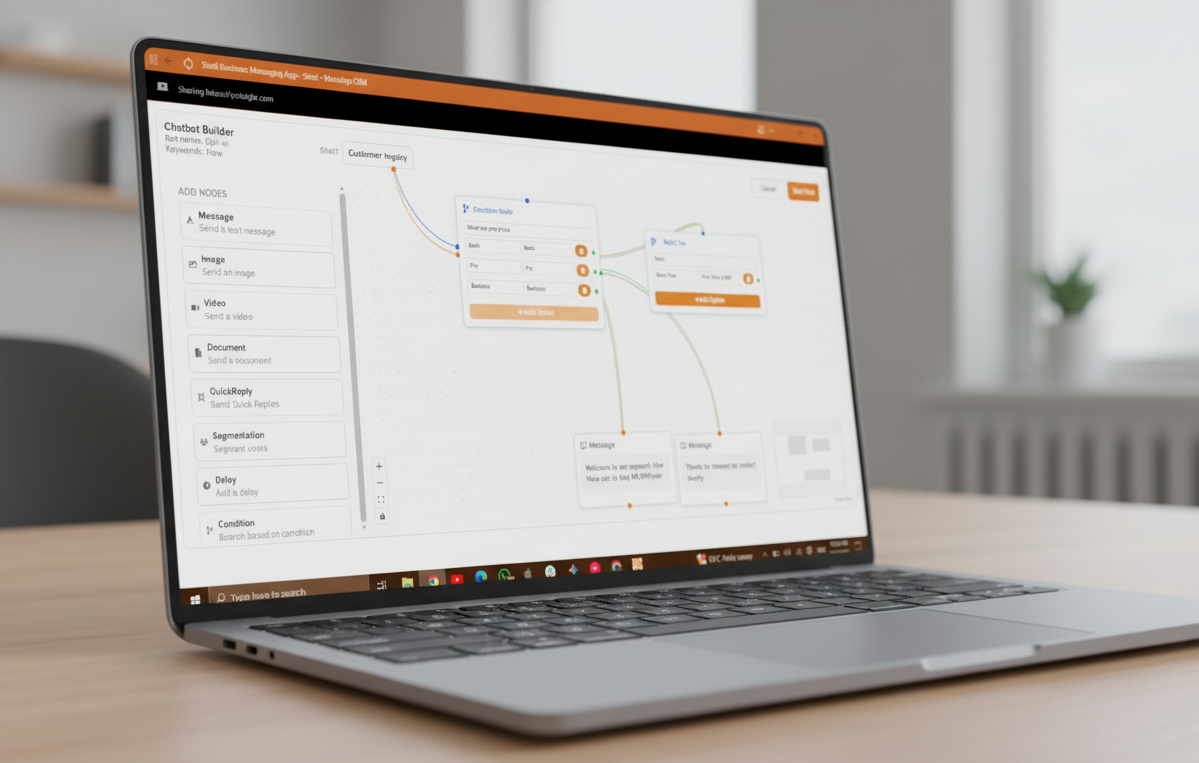
- Chatbot / interactive flows: capture lead details, route queries, and hand off to agents when needed. Useful for pre-qualifying leads and reducing agent load.
- Message analytics & account health: monitor delivered/read rates, account quality and risks; platforms often offer automated “warming” and volume control to avoid bans.
Step-by-step setup for Nigerian teams
Below is a practical 10-step checklist your team can follow. Expect the whole setup to take anywhere from a few hours (if you have a provider and assets ready) to a few days (if you need template approvals or dev integrations).
Step 0: Prepare your assets
Create a professional business profile: logo, company description, address, support email, operating hours and FAQ. Save common quick replies and standard templates (order confirmation, payment instructions, delivery updates).
Step 1: Choose a verified WhatsApp API provider
Pick a provider that supports multi-user inbox, scheduled broadcasts, chatbot builder and account health tools (Siteti lists these features on its site). Check pricing tiers for features you need (Starter, Growth, Pro) and confirm support for coexistence mode if you want to retain your existing WhatsApp Business App history.
Step 2 : Get a dedicated business number
Acquire a number (SIM) you will use as the official business line. For brand continuity, get a local number (e.g., Nigeria +234) and ensure ownership and proper verification documents are ready.
Step 3: Register and provision the WhatsApp Business account
Work with the provider to register your business on Meta’s platform. You’ll typically provide business name, verification docs, and the phone number. The provider will handle API provisioning and template submission.
Step 4: Enable coexistence mode (optional but recommended)
If you already use the WhatsApp Business App and want to retain chat history, enable coexistence (availability varies by country/provider). This imports past chats and allows the app and API to coexist while you scale to multi-user inbox. Siteti supports coexistence mode and mentions importing up to 6 months of conversations (country-dependent).
Step 5: Configure your shared inbox and agent accounts
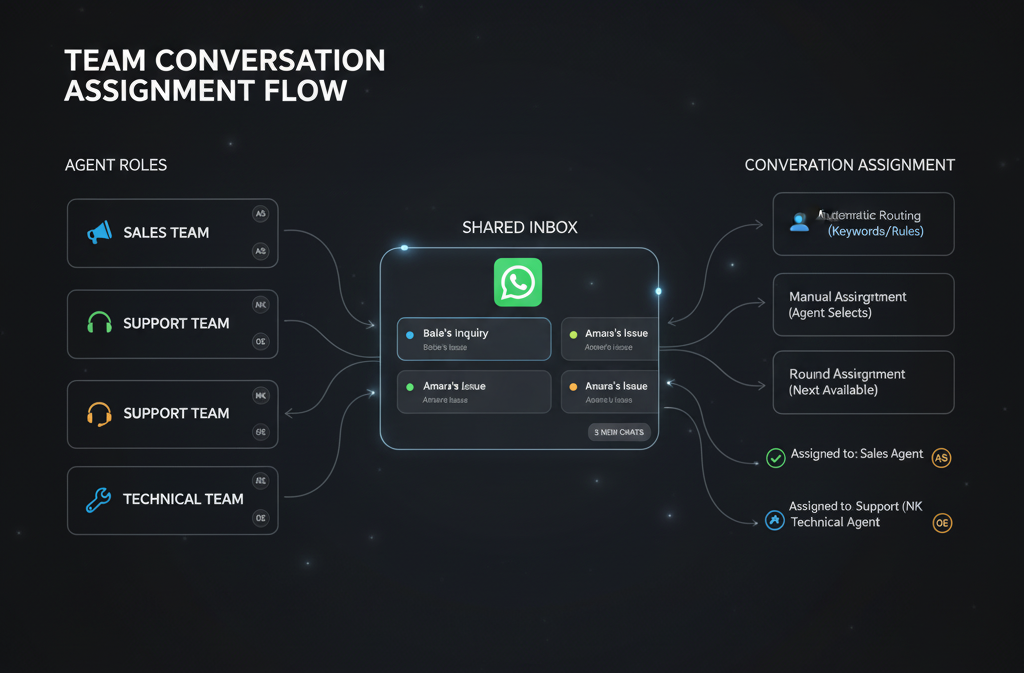
Create agent accounts with role-based access (agent, supervisor, admin). Configure shared inbox rules: auto-assign by round-robin, skill tags (sales/support), or assign by channel (orders vs. support).
Here’s a video on how to auto assign/segment.
Step 6: Import contacts & segments
Upload your existing contacts via CSV/Google Sheets and tag them (customers, leads, VIPs). Build segments for targeted broadcasts (e.g., past buyers in Lagos, prospects who asked about a product).
Step 7: Build quick replies, templates & chat flows
Create quick replies for common questions and request template approval for outbound notifications (order confirmations, pickups, delivery windows). Build basic chatbot flows for lead capture and FAQs so agents receive pre-qualified chats.
Example quick reply:/price → “Hi! Our standard 3-tier cake starts at ₦X. Do you want delivery to Lagos or Abuja?”
Step 8: Schedule and test broadcasts (safely)
Start with small, opt-in segments to test scheduled broadcasts. Use approved templates and follow the provider’s rate guidance to avoid bans. Monitor message analytics (delivered/read/failed) and account health alerts.
Step 9: Integrate with CRM / backend systems
Connect the WhatsApp conversation webhook to your CRM so chats create tickets or leads automatically. Map fields (phone, name, product interest, tags) and configure automation rules (e.g., tag as Hot if customer types “ready to buy”).
Developer note: use webhooks to push form answers into order systems, Google Sheets, or your ERP.
Step 10: Train agents and iterate
Run 1–2 days of training: how to use quick replies, how to escalate, SLA expectations (e.g., first response < 15 minutes during working hours). Monitor KPIs for the first 30 days and tweak conversation flows.
Best practices for Nigerian teams (practical + compliance)
- Opt-in & consent — always capture consent before broadcasting marketing messages. Keep a clear “unsubscribe” option.
- Use templates for outbound notifications only — promotional messages may require extra care; rely on transactional templates for confirmations and delivery updates.
- Warm your account — increase daily volumes gradually; platforms often provide account warming and rate limiting tools.
- Keep tone local and personal — WhatsApp is conversational; use friendly, simple language.
- Prioritize response time — aim for under 15 minutes during business hours; automate initial responses to manage customer expectations.
- Archive & audit — maintain chat logs for at least 6 months. If you use coexistence mode, import chat history where possible.
- Monitor account health — watch message fail rates, blocks and complaints. Use provider alerts to adjust volume or templates.
Example workflows (practical templates to copy)
A. New lead capture → qualification → assign
- Customer messages: “Interested in X.”
- Auto-reply: “Thanks! Can we get your preferred location and budget?” (chatbot asks location/budget)
- If budget > threshold → tag Hot and auto-assign to senior sales.
- If no reply in 24 hours → auto follow-up template.
B. Order flow (retail / e-commerce)
- Customer places order via form or chat.
- System sends template confirmation (approved template).
- Logistics agent updates delivery time via webhook → automated delivery update to customer.
- On delivery, agent sends a final confirmation and request for feedback (quick reply).
Providers offer tiered pricing: starter plans include broadcasts and quick replies; mid / pro tiers add message analytics, API access, shared inbox and call features. For example, Siteti lists Starter, Growth and Pro tiers with progressively more features and shared inbox/call support at higher tiers. Choose a plan based on message volumes and required integrations.
Common issues in Nigeria
- Message failures / timeouts: check network, provider rate limits and template approvals.
- High bounce or block rates: review template wording and ensure consent. Reduce volume and warm account.
- Agent confusion / duplicate replies: enforce ownership rules and use the CRM’s conversation lock/assignment features.
Final checklist (copy & use)
- Dedicated business number procured and verified
- Provider selected and API provisioning started
- Coexistence mode enabled (if needed) and history imported
- Agents created, roles assigned and trained
- Contacts imported and segmented
- Templates created and submitted for approval
- Basic chatbot flows and quick replies built
- Broadcasts tested on small segments
- CRM integration and webhooks tested
- KPIs agreed (first response time, resolution time, conversion rate)
A multi-user WhatsApp + CRM setup turns conversations into tracked business outcomes. If you want a tested path to scale: start with a pilot (one product line / one market), measure response time and conversions for 30 days, then roll out company-wide.
If you’d like a practical reference, Siteti documents the features described here (team inbox, scheduled broadcasts, coexistence mode and automation) and lists plans that suit teams of different sizes. They also offer visual, no-code tools for building automations and advice on safe broadcasting.